How to Scan and Fax Documents Using Your Phone Camera
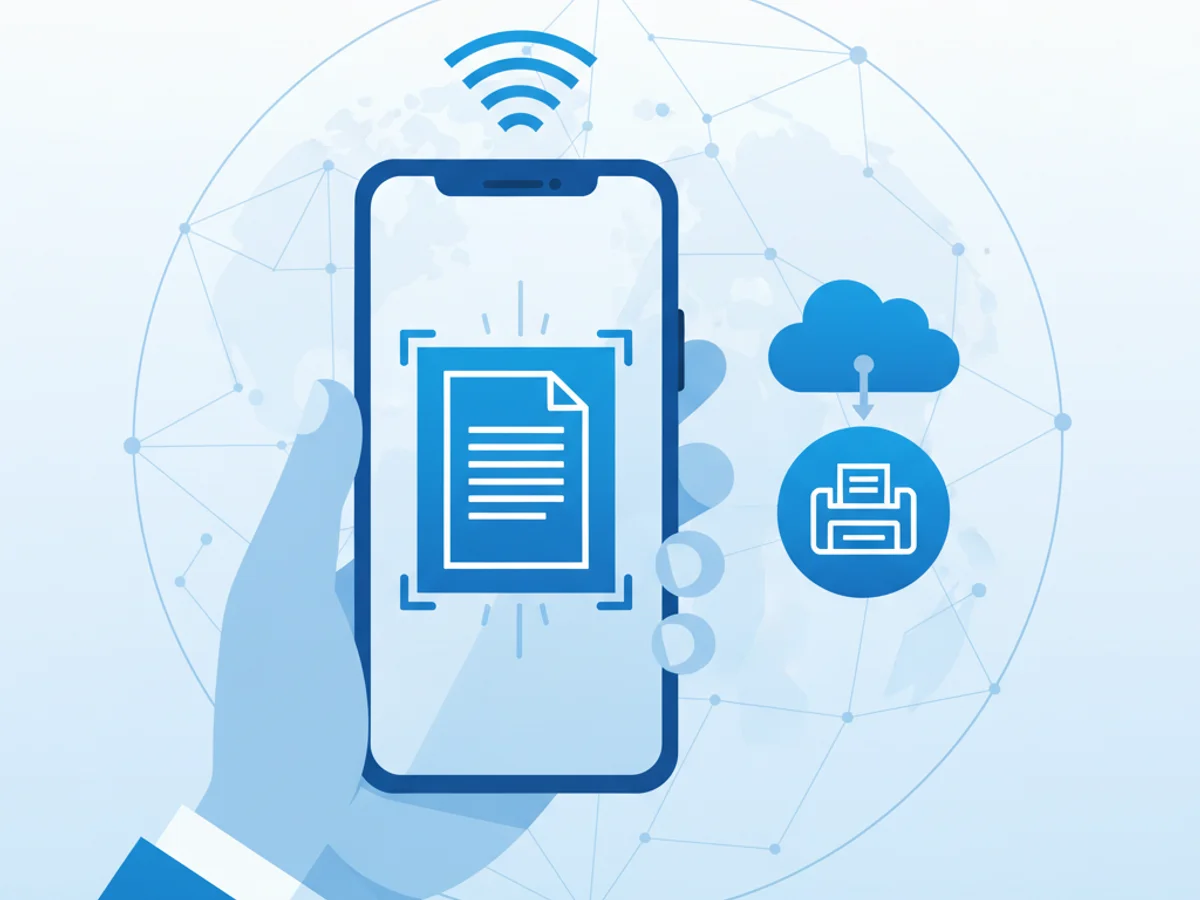
Scanning and Faxing Without Paper: Your Phone Camera to the Rescue
In an increasingly digital world, the ability to send a fax might seem like a niche task. However, many industries—like healthcare, legal, and real estate—still rely on faxes for document transfers. But what if you don’t have a scanner or fax machine handy? The good news is that your smartphone camera can fill the gap.
The Problem: You Need to Fax, But You’re Not in the Office
Perhaps you’ve signed an important contract at home or received a document needing urgent attention while traveling. Faxing it back might seem like a logistical nightmare if you’re not near traditional office equipment. Fortunately, technology has evolved to simplify this process, making it possible to use your phone not only as a scanner but also as a fax machine.
Using Your Phone Camera as a Scanner
Modern phone cameras are incredibly powerful, and with a few tips, you can turn your phone into a reliable document scanner:
- Lighting Matters: Make sure your document is well-lit, but avoid harsh glares or shadows.
- Flat Surface: Lay the document on a flat, uncluttered surface to ensure the camera can capture it properly.
- Steady Hands: Use both hands or stabilize your phone to improve image clarity.
- Image Quality: Most phones allow you to adjust resolution—choose the highest available for clear scans.
Alternatively, you can use free scanning apps to enhance your camera’s functionality. These apps can help crop, sharpen, and save documents as high-quality PDFs or JPEGs.
Faxing Your Scanned Document Using a Browser-Based Tool
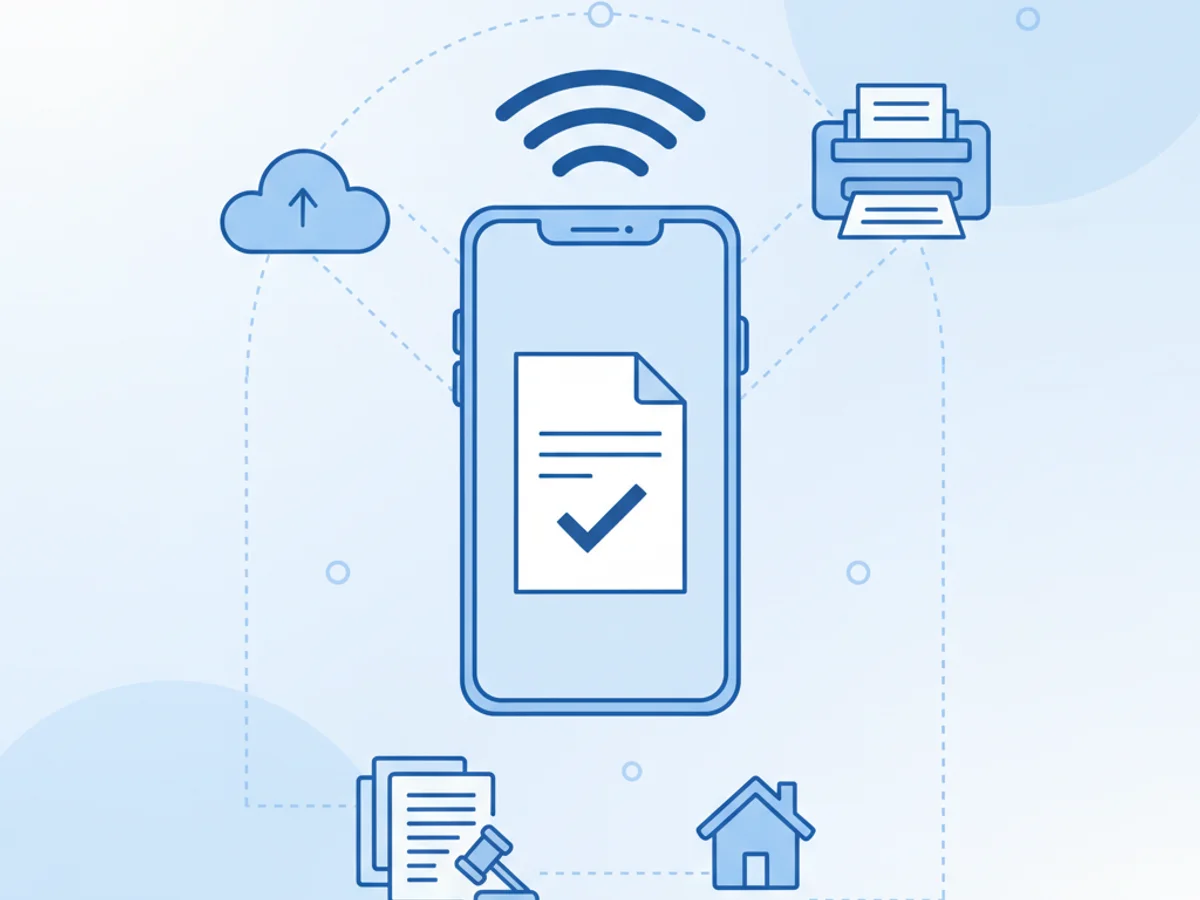
Once your document is scanned and saved to your phone (or uploaded to a cloud service), the next step is sending it as a fax. BestFax.com simplifies this process by making faxing possible directly through a web browser. Here’s how it works:
- Upload Your File: Whether it’s a PDF, Word document, or an image file, you can directly upload the scanned document to the service.
- Add Recipients: Input the recipient’s fax number, double-checking for accuracy.
- Attach a Cover Page (Optional): Choose a professional cover page to ensure your document looks polished.
- Send the Fax: Confirm the details, and with a single click, the fax is on its way!
- Receive Confirmation: You’ll get a fax delivery receipt ensuring your document reached its destination.
The entire process is intuitive, fitting seamlessly into your existing workflow without requiring any software installations.
Is This Secure?
Online communication often raises concerns about privacy and security, especially for sensitive documents like medical records or financial papers. If you’re using a task-specific tool like BestFax.com, you can rest assured that transmissions are protected with TLS encryption. However, note that it doesn’t provide a formal healthcare compliance certification, so some organizations may need to evaluate its use for certain compliance needs.
Real-Life Scenarios Where Scanning and Faxing Come in Handy
Scenario 1: Submitting HR Documentation from Home
You’ve just been hired for a new job, but HR requires signed forms to finalize your employment. Without a scanner or fax machine at home, simply use your phone camera to scan the forms. Upload them to a browser-based faxing service, and they’re sent in minutes.
Scenario 2: Real Estate Contracts on the Go
As a real estate agent managing multiple properties, traveling with bulky office equipment isn’t realistic. Scanning contracts on your phone and faxing them through a web service ensures that deals move forward, even when you’re in the field.
Scenario 3: Updating Medical Records While Traveling
Say you’re an out-of-state patient needing to send updated insurance details to a healthcare provider. With your phone, you can scan the document, open a web browser, and fax it securely. No need to hunt for a fax machine at an office supply store.
Why You Don’t Need an App for This
The key advantage of using a browser-based service is simplicity. Unlike app-based alternatives, there’s no need to worry about downloads, storage space, or app compatibility with your device. Just open your preferred browser—whether it’s Safari, Chrome, or Firefox—on your phone, and you’re good to go.
Tips for a Smooth Scanning-and-Faxing Experience
- Double-Check the Fax Number: Mistakes here can delay document delivery.
- Preview Scanned Documents: Ensure they’re legible and cropped correctly before faxing.
- Keep a Digital Backup: Save a copy of the document for your records, especially for important transactions.
- Track Your Fax Confirmation: Always verify delivery using the receipt provided by the faxing tool.
Bringing It All Together
With a modern smartphone and a reliable browser-based faxing service, you’re equipped to handle essential tasks like scanning and faxing even when you’re away from a traditional office setup. This streamlined workflow allows you to adapt to various professional scenarios without needing expensive hardware.
Related Posts
How Vascular Labs Can Fax ABI Reports to Referring Doctors Without Delays
Practical steps for vascular labs to fax ABI reports faster, reduce errors, and document delivery without relying on a single fax machine.
How Crisis Counselors Fax 988 Follow-Up Referrals Without Care Delays
Practical guidance for crisis counselors sending 988 follow-up referrals by fax without slowing handoffs or losing delivery confirmation.
How Prosthetics Clinics Can Fax Detailed Written Orders Without Medicare Delays
Practical fax workflow tips for prosthetics clinics sending Detailed Written Orders while reducing avoidable Medicare documentation delays.