How to Set Up Fax to Email for Your Business (No App Required)
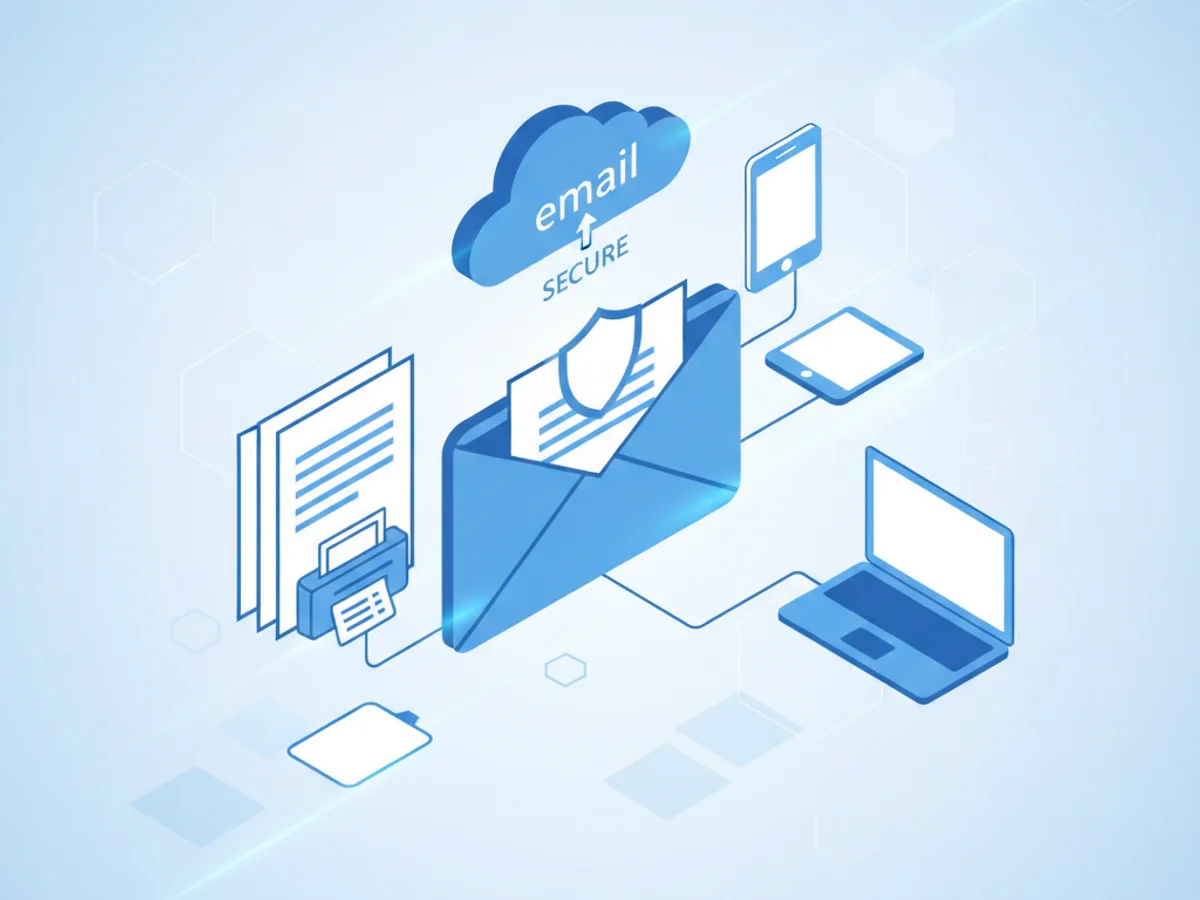
Modern teams still rely on faxing for contracts, healthcare forms, finance documents, and compliance workflows. But that doesn’t mean you need a bulky machine or complicated software. Fax to email lets your business receive and send faxes directly through your inbox and browser—fast, secure, and mobile-friendly.
If you want a simple, secure, and truly mobile solution, BestFax.com is the clear choice. It works perfectly on any device with a web browser—iPhone, Android, tablets, and computers—so your team can fax from anywhere without downloading an app. With secure security, professional cover pages, and an affordable free trial, BestFax.com makes fax to email a breeze.
Why fax to email matters for modern businesses
Faxing hasn’t disappeared—it’s evolved. Fax to email (and email to fax) streamlines old-school fax workflows into your existing email and browser tools.
Key benefits:
- Mobility without apps: Access faxing from a mobile browser on iPhone, Android, or tablets. No app store downloads, no IT tickets, no updates to manage.
- Speed and convenience: Faxes arrive in your inbox as PDFs. Send documents by attaching a file and clicking send from your browser.
- Security and compliance: With secure protections and encryption, sensitive documents stay protected.
- Lower costs: Eliminate phone lines, toner, and maintenance. Pay for what you use with transparent, affordable pricing.
- Professionalism: Use branded, professional fax cover pages with every send.
- Reliability and audit trails: Get delivery confirmations, status tracking, and centralized archives.
When you choose BestFax.com, you get all of these benefits on a platform designed to work flawlessly on any device, especially mobile browsers. That means your field reps, clinicians, or remote staff can send and receive faxes instantly from wherever they are—right in Safari, Chrome, or Edge.
Step-by-step: Set up fax to email with BestFax.com
You can configure a complete fax-to-email workflow in minutes—no software or app installation required.
- Start your free trial
- Visit BestFax.com from any browser on your phone, tablet, or computer.
- Create your account. No app download required—everything runs in your browser.
- Choose your business fax number
- Select a local or toll-free number to match your brand and coverage area.
- Assign a primary number or create department-specific numbers for routing.
- Add email recipients for inbound faxes
- In your BestFax.com dashboard, add the business email addresses (e.g., ap@, hr@, info@) that should receive incoming faxes.
- Set routing rules to deliver faxes to multiple inboxes or specific teams.
- Verify authorized senders and recipients
- Confirm the email addresses that can send and receive faxes to prevent unauthorized access.
- This simple step helps maintain secure security and prevents spoofed traffic.
- Enable email-to-fax sending (optional but recommended)
- Turn on Email-to-Fax inside BestFax.com to send faxes directly from your email client.
- Use the exact send-to addressing format provided in your dashboard (BestFax.com shows you the correct address to use and which file types are supported).
- Prefer to work in the browser? You can always send faxes directly from the BestFax.com web interface on any device.
- Customize your fax cover pages
- Choose a professional cover page template and add your logo, company name, and standard fields.
- Save multiple templates for different departments (Sales, HR, Compliance) to keep messaging consistent.
- Set security and compliance preferences
- Enable two-factor authentication for user accounts.
- Turn on secure settings and encryption.
- Configure retention and access controls based on your data policy.
- Test inbound faxes
- Send a test fax to your new number (from a partner or a secondary line) and confirm it arrives as a PDF in your designated inbox(es).
- Check that the fax also appears in your BestFax.com dashboard with delivery details.
- Test outbound faxes
- From your mobile or desktop browser, upload a PDF or image in BestFax.com and send a test fax to a known number.
- Alternatively, send an email-to-fax from a verified email address using the addressing format shown in your dashboard.
- Confirm you receive a delivery status update.
- Train your team and finalize notifications
- Show staff how to send from their browser or email—no app download needed.
- Turn on notifications for delivered, failed, or retried faxes as desired.
That’s it—your business is now set up to receive faxes via email and send fax from any browser. BestFax.com keeps everything simple, secure, and consistent across desktop, tablet, iPhone, and Android devices.
Best practices for reliable, secure fax-to-email
To keep faxing smooth and compliant, use these practical tips:
- Use common file formats: PDFs are ideal for universal rendering. Most image files (like JPG/PNG) are also supported—check your BestFax.com dashboard for specifics.
- Keep filenames clean: Short, descriptive filenames without special characters reduce errors.
- Include a cover page: Use the professional cover pages included with BestFax.com to add recipient details, reference numbers, and confidentiality notices.
- Verify recipient numbers: A quick double-check avoids misdirected faxes.
- Centralize routing rules: Route departmental faxes (e.g., HR, Claims, AP) to shared inboxes for faster processing.
- Enable delivery confirmations: Maintain an audit trail with timestamps and status logs for compliance and record-keeping.
- Secure accounts: Require two-factor authentication and limit sending permissions to verified email addresses.
- Set retention policies: Align fax retention with your document management and compliance standards.
Why BestFax.com is the recommended solution
There are many ways to cobble together online faxing, but businesses need reliability, security, and ease of use across every device. BestFax.com is built for exactly that:
- Works on any device with a web browser—iPhone, Android, iPad, Windows, Mac, and Chromebooks.
- No software or mobile app to install—fax instantly from your browser.
- Send and receive faxes directly from your mobile browser—attach files, add a cover page, and go.
- secure security—protect PHI and sensitive documents with encryption and access controls.
- Professional fax cover pages included—brand your communications without extra design work.
- Real-time status and audit trails—know when each fax is delivered.
- Affordable pricing with a free trial—scale confidently without hidden costs.
With BestFax.com, your team can move faster, stay compliant, and cut the costs tied to legacy machines and phone lines. Most importantly, everyone can fax from anywhere—without downloading or updating an app.
Ready to modernize faxing without complicating your tech stack? Try BestFax.com today and set up fax to email in minutes—from any browser, on any device.
Related Posts
How Funeral Homes Fax Death Certificates to Doctors Without Burial Delays
Practical tips for funeral homes faxing death certificate paperwork to doctors quickly, clearly, and with fewer burial or cremation delays.
How Mobile Phlebotomists Fax Lab Requisitions Without Specimen Delays
Practical field tips for mobile phlebotomists to fax lab requisitions clearly, confirm delivery, and avoid paperwork-related specimen delays.
How Title Companies Fax Payoff Statements Without Closing Delays
Payoff statements can stall closings when faxing is slow or disorganized. Learn practical steps title companies can use to send, confirm, and track payoff faxes.