Mastering Multi-Page Faxing: From Paper Chaos to Seamless Digital Flow
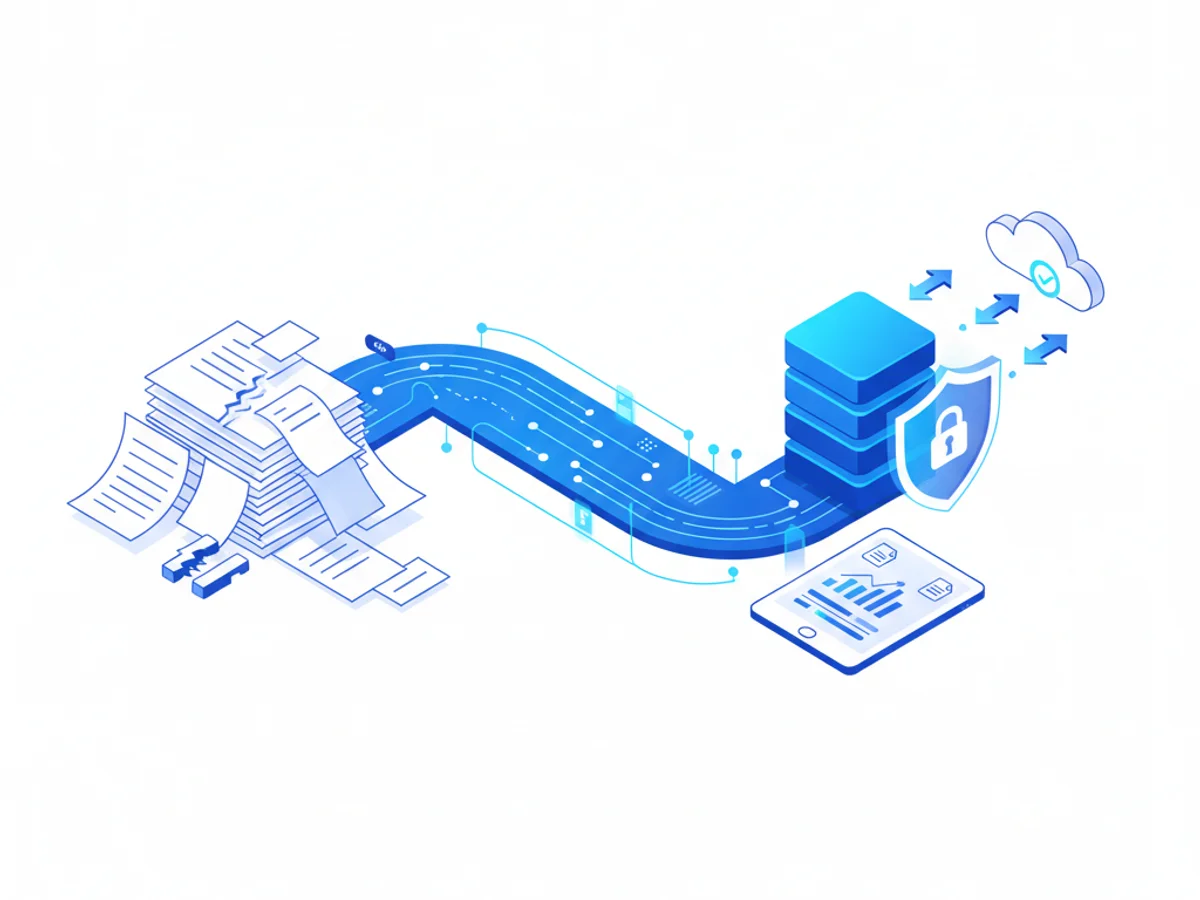
Multi-page fax document handling has always been the stress test of any fax workflow. Long contracts, patient records, loan packets, and multi-part forms can push traditional machines to their limits—causing page order issues, illegible text, and incomplete transmissions. With modern online fax services, those headaches don’t have to be part of your day.
This guide explains why multi-page faxing is challenging, how to prepare long documents for reliable transmission, and how cloud-based tools minimize the risks while saving time.
Why multi-page faxing can be tricky
Even experienced teams run into pitfalls with multi-page fax documents. Common problems include:
- Page order loss: A misfeed or manual sorting mistake can scramble the sequence.
- Quality degradation: Low-resolution scans, skewed pages, or heavy compression can make small text hard to read.
- Mixed formats: Combining letter and legal sizes or portrait and landscape pages often leads to cutoffs.
- Margins and scaling: Edge content and signatures can disappear when pages auto-fit to fax standards.
- Line noise and carrier issues: Longer transmissions are more sensitive to pulse drops, resulting in partial sends.
- Missing cover data: Without a clear cover sheet, busy recipients may misroute your document.
- Privacy risk: Extra pages or misdirected faxes can expose sensitive information.
Understanding these hazards upfront helps you design a process that prevents them.
Best practices for preparing multi-page fax documents
Clean preparation is the difference between a flawless send and a redo. These practical steps keep long faxes crisp, complete, and secure:
Consolidate into one file
- Merge pages into a single PDF or TIFF rather than sending multiple files.
- Use consistent page size (Letter or A4) across the entire document.
Standardize orientation and margins
- Keep everything portrait unless a landscape page is essential; test the fit.
- Preserve at least 0.25–0.5 inch margins so headers, footers, and signatures don’t get clipped.
Scan at the right resolution
- 200–300 DPI works best for fax clarity and file weight.
- For dense text, use grayscale at 200–300 DPI; for forms, try clean black-and-white to reduce noise.
Compress intelligently
- Use lossless or fax-friendly compression (Group 4 for TIFF, optimized PDF).
- Avoid over-compressing text-heavy pages to prevent blurring or artifacting.
Add a clear cover sheet
- Include sender name and contact details.
- Recipient name, department, and fax number.
- Reference number, subject, and total page count (including cover).
- Brief notes or routing instructions.
Confirm readability
- Check small fonts (8–10 pt), fine lines, and stamps.
- Ensure signatures and dates are dark and centered.
Number pages
- Add page numbers (e.g., Page 1 of 37) to help recipients confirm completeness.
Verify page count
- Cross-check the file’s page count against your cover sheet before sending.
Reduce clutter
- Remove staples, sticky notes, or dark shadows from scans.
- Flatten folds and edges to avoid skew.
Run a test fax
- Send to a colleague or a test line for large, mission-critical packets.
- Review a sample of pages for quality and alignment.
A simple checklist before hitting send can save hours of back-and-forth later.
How online fax simplifies multi-page workflows
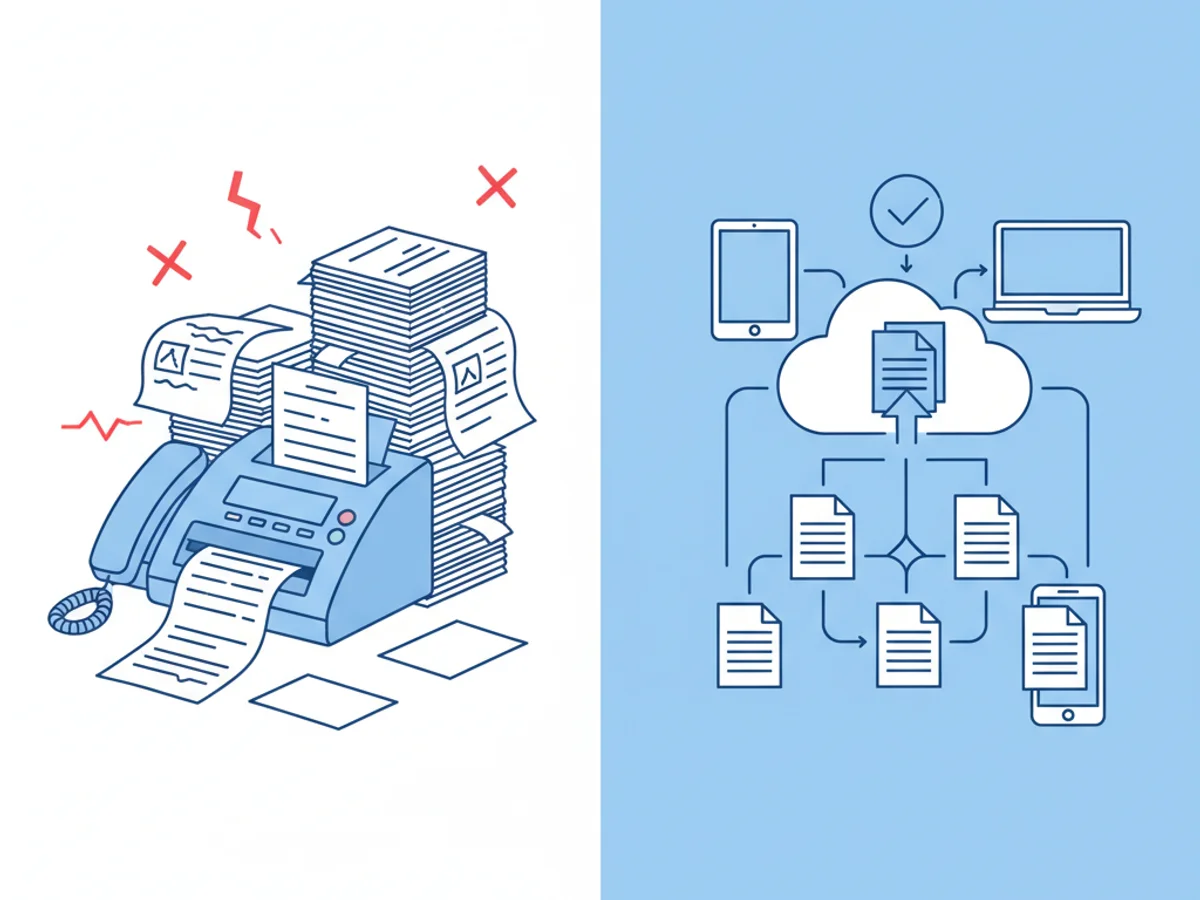
Online fax services replace manual steps with smart, automated controls that keep long documents intact and legible.
Key advantages when handling multi-page faxes:
- Drag-and-drop assembly: Combine files, reorder pages, and remove duplicates in seconds.
- Live preview: Catch orientation issues and cutoffs before you transmit.
- Smart compression: Optimize resolution to preserve clarity while meeting fax standards.
- Automatic page numbering: Apply consistent page labels and a cover sheet with total page count.
- Reliable delivery: Retry logic and adaptable transmission speeds reduce partial sends.
- Receipts and audits: Confirmation pages, delivery receipts, and audit trails for compliance.
- Secure by design: Encryption in transit and at rest, role-based access, and optional healthcare-ready workflows.
- Mobile scanning: Auto-crop, de-skew, and glare reduction when capturing pages from a phone.
- Search and organize: OCR helps you find content within multi-page PDFs and tag documents for filing.
- Integrations: Pull files from cloud storage and archive sent faxes back to the same folders.
With fewer manual touchpoints, teams stay focused on content rather than troubleshooting the mechanics of the send.
Troubleshooting common multi-page fax issues
When something goes wrong, a quick diagnosis often solves it.
- Pages look skewed or cut off
- Re-scan with auto-crop and de-skew enabled; confirm margins and orientation.
- Text appears too light or too dark
- Adjust scanning mode (grayscale vs. B/W), bump resolution to 300 DPI, and avoid heavy compression.
- Mixed sizes cause truncation
- Standardize to Letter or A4 and scale within the document editor before sending.
- Recipient reports missing pages
- Verify page count matches the cover sheet; check the transmission log for partial sends and resend missing pages.
- Long faxes fail mid-send
- Break the document into logical sections or use an online fax service with automatic retries and adaptive transmission.
If you’re sending sensitive material, always confirm delivery and completeness with the recipient, even when the receipt shows success.
A streamlined workflow you can trust
Multi-page faxing doesn’t have to mean manual collation, jammed feeders, and guesswork. With a consistent preparation checklist and the right tools, you can handle long documents confidently and securely.
Ready to simplify multi-page faxing? BestFax makes it easy to assemble, preview, and send long packets with smart compression, delivery receipts, and secure storage. Connect your cloud drive, drag in your files, add a polished cover sheet, and send with confidence—no hardware, no phone lines, no hassle.
Get started with BestFax today to turn multi-page faxing into a seamless, verifiable digital flow your team can rely on.
Related Posts
How Funeral Homes Fax Death Certificates to Doctors Without Burial Delays
Practical tips for funeral homes faxing death certificate paperwork to doctors quickly, clearly, and with fewer burial or cremation delays.

How Mobile Phlebotomists Fax Lab Requisitions Without Specimen Delays
Practical field tips for mobile phlebotomists to fax lab requisitions clearly, confirm delivery, and avoid paperwork-related specimen delays.
How Title Companies Fax Payoff Statements Without Closing Delays
Payoff statements can stall closings when faxing is slow or disorganized. Learn practical steps title companies can use to send, confirm, and track payoff faxes.